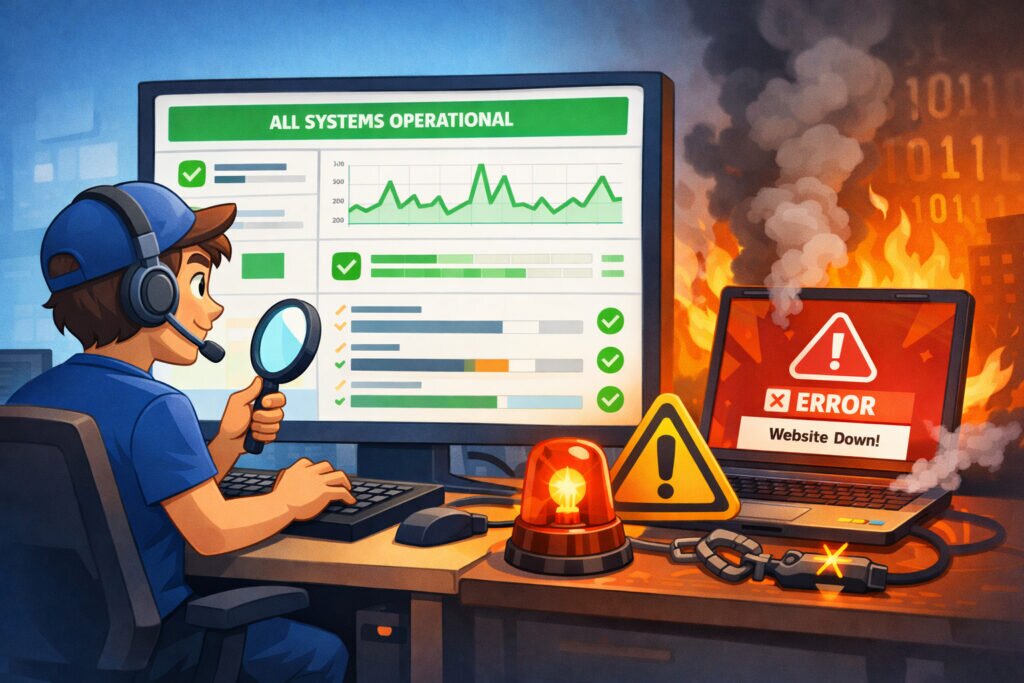
You’ve set up website monitoring, configured your alerts, and told yourself “I’m covered.” But here’s the uncomfortable question: have you actually tested whether any of it works? Most site owners and DevOps teams assume their monitoring setup will perform when it matters — during a real outage. That assumption has burned more people than I can count. Testing your monitoring setup before disaster strikes is the single most overlooked step in uptime management, and it’s the difference between a five-minute fix and a two-hour scramble.
If your monitoring doesn’t fire when your site goes down, you might as well not have monitoring at all. Let’s walk through exactly how to verify your setup end-to-end so you’re not discovering gaps at 2 AM on a Saturday.
Why Most Monitoring Setups Fail Silently
Here’s a scenario that plays out more often than anyone admits. A team configures uptime checks, hooks up email alerts, maybe even connects a Slack channel. Months go by with green dashboards. Then the database crashes, the site starts returning 500 errors, and… nothing. No alert. No email. No Slack ping.
What happened? Usually one of these: the alert email lands in spam, the notification channel was reconfigured without updating the webhook, someone changed the monitored URL during a site migration, or the check interval is too long to catch brief but damaging outages.
The common myth here is that if your monitoring dashboard shows green, your alerting pipeline is working too. It’s not. The dashboard confirms your checks are running. It says nothing about whether the right people get notified the right way when something breaks.
Step 1: Trigger a Controlled Failure
The most reliable way to test monitoring is to cause a real, brief outage on purpose. This doesn’t mean pulling the plug on your production server. Instead:
Put up a temporary maintenance page that returns a 503 status code on a monitored endpoint. Or, if you have a staging environment monitored separately, shut down the web server process for two minutes.
Watch what happens. Did the downtime detection trigger? How fast? Did the alert reach you? Check your email inbox — and your spam folder. If you use SMS or Slack notifications, confirm those fired too.
If you’ve followed a proper initial setup process, your checks should already be pointed at the right URLs. But configurations drift over time, especially after redesigns or domain changes.
Step 2: Verify Every Notification Channel
Most monitoring tools let you send a test alert. Use that feature, but don’t stop there. A test alert proves the integration exists — it doesn’t prove the alert will reach you during an actual incident.
Here’s what to check for each channel:
Email: Send a test alert. Confirm it doesn’t land in spam or promotions. If your team uses shared inboxes, verify the right people actually see it. Email filters and rules silently bury alerts all the time.
Slack/Teams: Confirm the webhook URL is still valid. Bots get removed, channels get archived, tokens expire. Post a test message and make sure it appears where your on-call team actually looks.
SMS: Verify your phone number is current and that your carrier isn’t blocking short-code messages. This one catches people after they switch phones or providers.
Good alert design matters just as much as delivery. If you’re getting buried in noise, you’ll ignore the real alerts when they come. Setting up smart alerts that don’t overwhelm you is worth doing before you run your tests, so you’re validating a clean configuration.
Step 3: Confirm What You’re Actually Monitoring
Pull up your list of monitored endpoints and compare it against your actual site structure. You’d be surprised how often these drift apart.
Ask yourself: Are you monitoring the homepage only, or also critical paths like the login page, checkout flow, and API endpoints? Is the monitored URL using the correct protocol — HTTPS, not HTTP? If you recently migrated to a new domain or changed your URL structure, are the old checks still pointing at now-redirected URLs?
A redirect might return a 200 after bouncing through a 301, which makes your monitoring think everything is fine — even if the actual destination is broken. Check that your monitoring follows redirects the way you expect, or better yet, monitor the final destination URL directly.
For a thorough audit, work through a complete website monitoring checklist to catch anything you’ve missed.
Step 4: Test Your Response Process, Not Just Your Tools
Monitoring is only half the equation. The other half is what happens after the alert fires. Run a tabletop exercise: simulate an alert and walk through your team’s response.
Who gets the alert first? Do they know what to do? Can they access the server or hosting panel to investigate? Is there a documented escalation path if the first responder doesn’t act within ten minutes?
If you don’t have a written plan, an alert just becomes a notification that something is wrong — with no clear path to fixing it. Building an effective incident response plan ahead of time turns a monitoring alert into the first step of a structured recovery, not a moment of panic.
Step 5: Schedule Regular Monitoring Audits
Testing once isn’t enough. Infrastructure changes, team members rotate, and notification tools update their APIs. Set a recurring calendar reminder — quarterly works well for most teams — to repeat these checks.
During each audit, verify: all monitored URLs are still correct, all notification channels deliver successfully, alert thresholds and check intervals still match your SLA requirements, and new critical endpoints added since the last audit are covered.
Fifteen minutes of testing every three months can save you hours of downtime you’d never even know about until a customer complains.
Frequently Asked Questions
How often should I test my monitoring setup?
At minimum, once per quarter. Also test immediately after any infrastructure change — server migration, domain update, CDN configuration change, or team restructuring that affects who receives alerts.
Can I test monitoring without causing real downtime?
Yes. Most monitoring services support test alerts for verifying notification delivery. For a deeper test, you can use a staging environment or temporarily return an error code from a dedicated test endpoint. The goal is to trigger the full alert pipeline without affecting real users.
What’s the most common reason monitoring fails during a real outage?
Stale notification settings. Email addresses change, Slack webhooks expire, and team members leave without updating the on-call roster. The monitoring checks themselves usually keep running fine — it’s the alerting side that breaks silently.
Testing your monitoring might feel unnecessary when everything looks green. But the whole point of monitoring is to protect you when things go red. If you haven’t verified that protection actually works, now is the time — not during your next outage.